
The System I Carry Into Every Country
I have been travelling full-time across Asia for two years now, with no fixed home base. I wrote about how that started in Solo Travel in Retirement: How I Left Australia and Never Came Back — the short version is that an experiment confirmed itself, and I made it permanent. Two years of doing this has produced something I didn’t have in the beginning: a digital infrastructure that travels with me, country to country, largely unchanged.

eSIM, VPN, an MFA setup that doesn’t depend on a single point of failure, navigation, document backup. It’s already on my phone before I land anywhere new. When a country has a specific requirement my existing setup doesn’t cover, I add it before I land, not after. Most of it exists for the same reason: travelling alone as a woman means managing risk continuously, not occasionally, and infrastructure is how I do that without thinking about it every time.
Japan, on paper, should have needed almost nothing extra. Two years in, my arsenal is unusually well prepared. The research before this trip told me GO Taxi was the taxi app in Japan — no mention of Uber at all. I only discovered Uber was actually available after landing, when taxis with Uber branding started passing me on the street. I’d kept Uber on my phone regardless, simply because it’s the ride-share app I’ve always used in Australia. That accidental overlap turned out to matter more than I expected, for reasons I’ll get into below.
This is what’s actually on my phone, why each piece is there, and what to check before you land in Japan specifically.
eSIM — Connectivity From the Moment You Land
An eSIM means I turn off Airplane mode and I’m connected before I’ve disembarked the plane. There’s no counter to queue at on arrival, no SIM card to track down at an airport kiosk, and no pocket wifi device to collect, charge, carry around all day, and remember to return before departure. Airalo is what I actually use — either the Japan-specific plan for a Japan-only trip, or the Asia regional plan when Japan is one stop on a longer route through Asia.
Other names come up often in this space. Ubigi, Holafly, and Sakura Mobile all have a following, and any of them will likely do the job. I haven’t needed to switch, because in two years of travelling full-time across Asia, I’ve had exactly one eSIM issue. It happened in Seoul, not Japan, on the Asialink regional plan.
What Happened in Seoul
My eSIM normally connects the moment I land, automatically, without me thinking about it. In Seoul, it didn’t. The system couldn’t connect to any available network.
I’d arranged a private car from Incheon, with all communication running through WhatsApp. Waiting at the luggage belt, I realised I hadn’t heard from my driver — unusual, and the first sign something was off. I checked my connection. Nothing. I switched to airport wifi long enough to confirm my arrival so he could meet me at the right point.
Once in the car, the airport wifi was gone, and so was my usual risk check. I track the route on Google Maps every time a male driver I don’t know takes me somewhere I’ve never been, in a country where I don’t speak the language and have no one to call if the route stops matching the map. That’s not paranoia. It’s a habit any solo woman travelling alone should build, and one I rely on without exception. Without a connection, I couldn’t do it, and I felt my anxiety climbing in a way it doesn’t usually do during a transfer.
I turned on my home SIM — Moose Mobile — for the day, at a cost of AUD10. It gave me connectivity until I reached the hotel.
Once on hotel wifi, I worked through it with ChatGPT. The fix was simple in the end: turn off auto-connect to networks and manually select one instead. SK Telecom, the largest of South Korea’s three carriers, was the one that let me connect manually, and the eSIM worked normally from that point on.
It wasn’t instant, and it wasn’t dramatic. It was a problem with a process, and the process worked.
Visit Japan Web — The e-Arrival Form Nobody Tells You About
This one surprised me. It’s not covered on Smart Traveller, Australia’s own government travel advisory, and it barely registers in most pre-trip research. The only reason I completed it before flying is that both ChatGPT and Gemini flagged it independently when I was planning logistics, and in hindsight, skipping it would have cost real time at the airport.
Visit Japan Web replaces the paper arrival card and customs declaration you’d otherwise fill out on the plane or in the arrivals hall. Complete it online before you fly, and you get a single QR code covering both immigration and customs. At the gate, that one code, plus your passport, is what gets scanned, rather than a stack of paper forms and a queue of people filling them out by hand.
There’s no fixed window for completing it, unlike some countries’ digital arrival cards that only open a set number of days before travel. As soon as you have your flight and accommodation confirmed, you can complete it. The only real requirement is finishing it at least six hours before you land, which gives you plenty of room to sort it well in advance rather than scrambling at the gate.
It shortcut the immigration process noticeably. What caught me off guard was that the QR code wasn’t only needed at the immigration desk. After collecting my luggage, I needed it again to actually get through the exit gate, on the way out of the arrivals area entirely. It’s not a one-and-done scan at the first checkpoint. Keep your phone accessible, and don’t assume you’re finished with it once immigration is behind you.
This is squarely a before-you-land task, alongside the eSIM and MFA setup. Complete it from home, where you have time, reliable wifi, and no queue forming behind you.
Moose Mobile and Why I Keep a Home SIM
My home SIM stays in my phone, on Moose Mobile, not in a separate device or a drawer somewhere. Phone data always defaults to the eSIM, so the home SIM never racks up data charges, even while it’s sitting in the phone switched on. The only costs would come from making calls on it, which I rarely do — and, as Seoul showed, occasionally turning on its data when nothing else is working.
The reason I keep it at all isn’t data. It’s MFA. MFA comes through as an SMS, not a call, and on Moose Mobile that’s completely free.
MFA While Travelling
This comes up constantly in solo travel circles. Multi-factor authentication, or MFA, assumes a number receiving SMS in real time, and that assumption breaks the moment you’re running on an eSIM in a country where your home number isn’t roaming.
My order of preference:
- Authenticator apps (Google Authenticator, Authy, or similar) — work offline, don’t depend on any SIM at all, and are the most reliable option by a clear margin.
- Email verification — depends only on data, which the eSIM handles without issue.
- In-app verification — increasingly common with banks, just as reliable as the above.
- Mobile/SMS MFA — my least preferred option. It has never actually failed me, I just find it tedious and unnecessary in this day and age. I keep it as a fallback for the organisations that still default to SMS only.
Before any trip, the actual task is auditing which accounts still default to SMS-only MFA and switching them to an authenticator app while you still have easy access to settings and support.
VPN — On for Peace of Mind, Everywhere, Always
This isn’t a Japan habit. It’s a standing one, in every country, every day. I run NordVPN across my phone, my tablet, and my laptop simultaneously. Other names you’ll see mentioned regularly are ExpressVPN, Surfshark, and ProtonVPN — all legitimate, all doing roughly the same job.
The reasons are practical, not dramatic. Public wifi exposure is real, particularly when you’re handling banking or personal documents. Beyond that, a VPN lets you access streaming services from your home country while sitting in a hotel room on the other side of the world — reason enough on its own for plenty of travellers.
NordPass comes free as part of the NordVPN subscription, and it’s the piece that manages my passwords and ensures none of them repeat across accounts. It’s part of the same digital fortification strategy as the VPN itself — security that runs in the background rather than something I have to think about at the point of use.
Reading Google Maps for Japan’s Train System — A Blueprint
This is the section that took the longest to actually learn, and the one I most wish someone had laid out clearly before my first long Japan trip.
Most travel blogs make Tokyo’s trains sound simple: just open Google Maps and follow it. That was not my experience. The process is not intuitive, and I would have appreciated a far more detailed breakdown before I started relying on it.
For my first three or four days in Tokyo, I leaned heavily on ChatGPT to tell me which platform, which train, which direction. I was based at the Mercure Haneda Airport, which meant a lot of train travel and a real need to understand the layers of Tokyo’s train network early on.
Where I Got It Wrong
On one trip back to the hotel from central Tokyo, ChatGPT gave me the wrong instruction and sent me onto the wrong train line entirely. It ended at a dead end, nowhere near where I needed to be. I had to work out how to backtrack to a station that would actually get me home, again with ChatGPT’s help, this time getting it right.
That was the moment I decided to stop outsourcing the thinking. I made a deliberate effort to read Google Maps properly on every train ride from then on, cross-checking it against ChatGPT rather than relying on either one blindly. Eventually, the system clicked.
It cost time, not the trip. That distinction matters more than it sounds. And it is the reason I can give you the process below: I learned it the hard way, train by train, and it carried me through every line, in every city, across the full forty days of that trip.
The Google Maps Train-Reading Blueprint
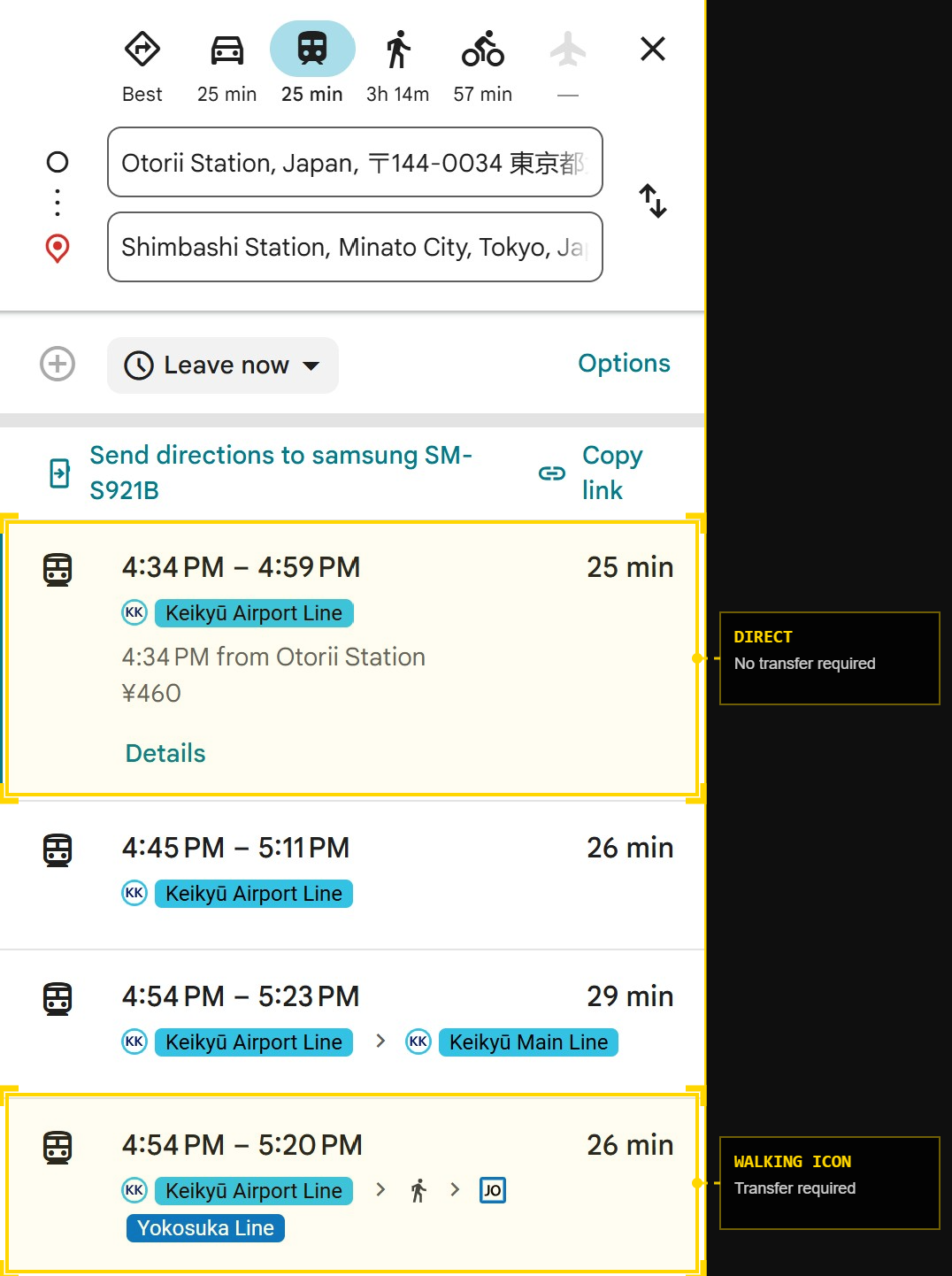
Step 1: Set Your Destination and Hit Directions Select the station you’re travelling to, then tap “Directions.” If you’re already standing at the departure station, Google Maps picks that up automatically. If not, enter your departure station manually.
Step 2: Select the Train Icon This filters the results down to train-specific routes, rather than walking or driving options, and gives you your immediate choices.
Step 3: Choose the Direct Line Where Possible Fewer transfers means less friction, so where a direct line exists, take it over a faster-but-more-complicated alternative. If a transfer is required, Google Maps will either show two train lines side-by-side or show a small walking-person icon on that leg of the route, flagging exactly where you’ll need to change trains.
Step 4: Drill Into the Option and Read Three Things Tap into the selected route, and Google Maps gives you everything you actually need:
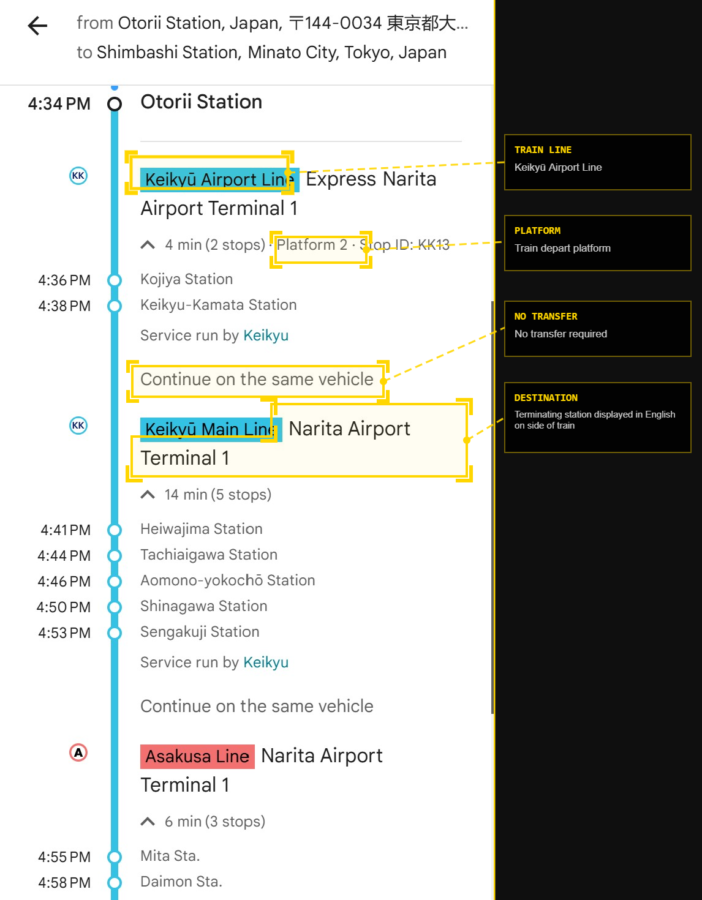
- The train line — for example, the JR Yamanote Line or the Tokyo Metro Ginza Line. This tells you which gate to look out for, since each line, or group of lines run by the same operator, has its own set of ticket gates. This is where you tap your transit card (or feed in a ticket) to get through.
- The platform the train departs from — this tells you which platform to find once you’re through that gate.
- The terminating station — this matters more than it sounds. The terminating station is what’s displayed in English on the side of the physical train, so it’s how you confirm, standing on the platform, that the train pulling in is actually the one you want.
Step 5: Watch for “Continue on the same vehicle” or “Remain on Board” If no transfer is needed for an upcoming leg, Google Maps tells you directly to remain on board. This single instruction removes most of the second-guessing that causes people to get off too early or change trains unnecessarily.
Step 6: Check Exit and Lift Information If You Need It I always head up to the main concourse first, then look for the exit I actually want from there, rather than trying to identify it from the platform. I aim for exits with escalators or lifts wherever possible, simply to minimise unnecessary steps. Google Maps flags which exits have a lift, which is worth checking.
If your transit card isn’t sorted yet, I covered exactly which one to get and why in The Transit Card You Need for Public Transport in Japan — it pairs directly with everything above.
From Confusion to Confidence
The first few days in Tokyo were genuinely hard on this front. Days, not hours, before the layers started reading clearly instead of as noise. That early struggle, however, is what made the following forty days across Japan manageable. Once Tokyo’s logic clicked, every other city’s network followed roughly the same pattern.
Taxi Apps — Uber, GO, and Where Each One Actually Works
GO as the Researched Recommendation
GO was what every piece of pre-trip research pointed to — described as the taxi app for Japan, with no mention of any alternative. I installed it on that basis, before landing.
Uber as the Discovery
Uber was already on my phone, the way it always is, simply because it’s the app I use at home in Australia. I had no expectation it would work in Japan. I only realised otherwise after landing, watching Uber-branded taxis pass me on the street. From that point, I ran both apps side by side.
What Happened at Futsukaichi
Futsukaichi station is remote, empty, and desolate. Standing there alone, with a taxi app that had just crashed and no way to reach the driver, is exactly the kind of moment this whole setup is built to prevent — not because anything was actually wrong, but because a solo woman with no working contact method in an unfamiliar place is a position worth avoiding, not managing after the fact.
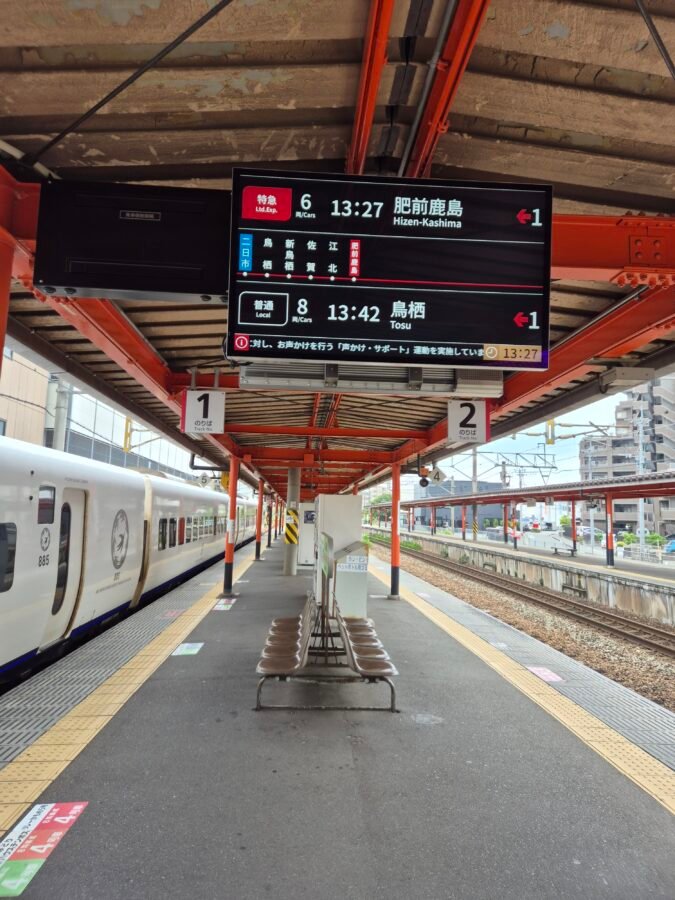
I was heading to Dazaifu from Fukuoka as a day trip, and had already ruled out two of the three logistics options. The bus from Hakata station to Dazaifu looked simple on paper, but the queue on the morning I tried it was insanely long, and I abandoned that plan on the spot. The subway from Hakata to Dazaifu was the second option, but it involved several transfers, and I decided against it.
That left the third option: a JR train to Futsukaichi station, followed by a taxi to Dazaifu. I still had my JR Pass active, and Gemini had told me there would be taxis waiting at the taxi stand. That information turned out to be wrong.
I called for a taxi through GO instead. The app itself feels like it’s from the last century — you have to manually confirm your pickup point rather than trust it to identify your location, which I hadn’t realised when I booked. The taxi turned up at a different exit, one I had no way of reaching. I tried calling through the app to sort it out, and at that point GO crashed entirely, locking me out.
I pivoted to Uber, using it for the first time in Japan. It picked up my location automatically, with no manual input needed, and the taxi arrived within minutes. I used Uber again later that day, travelling from the Kyushu Museum back to Futsukaichi station on the return to Fukuoka.
GO has worked for me before this, without issue, travelling from the Ibis Styles Hotel Nagoya to Nagoya station — a route with one clear pickup point and no competing exits to confuse the app. I noticed no obvious price difference between the two apps in either case. Given the choice, I prefer Uber, simply because the technology is better.
Document and QR Backup — Built In Advance
What to Back Up
Passport, accommodation reservations, e-arrival QR codes, flights in and out of countries and travel insurance documents — all backed up before departure, not assembled at a station counter when one of them is suddenly needed.
OneDrive vs. Google Drive
Either works, and have the app installed on your phone. The choice usually comes down to whichever ecosystem you’re already in. What matters more than the platform is the habit: everything backed up, in one place, before you fly.
Offline Access When You Have No Signal
Both platforms allow specific files to be marked for offline access. Mark the essentials — passport scan, key reservations — before you leave wifi range, not after signal disappears and you need them.
The Point of All This
None of this is about Japan being difficult. Japan is, if anything, one of the easier countries I’ve moved through in two years of doing this full-time. The point is that I didn’t leave any of it to chance, and that’s the difference between a trip that runs smoothly and one that runs smoothly most of the time.
GO failing at Futsukaichi cost me ten minutes and a moment of frustration, not the day, because Uber was already on my phone. The eSIM failing in Seoul cost me ten Australian dollars and a slightly elevated pulse rate, not a missed pickup, because the home SIM was sitting there, doing nothing, until it was needed. The wrong train in Tokyo cost an afternoon, not the trip, because I’d already decided that learning the system mattered more than getting it right on the first try.
None of these were close calls. They were minor failures inside a setup built to absorb them. That’s the actual return on doing this before you land rather than after something has already gone wrong: not a guarantee that nothing breaks, but the certainty that nothing breaking takes the rest of the day down with it.
Before You Land — The Blueprint
- eSIM installed and activated for arrival
- Visit Japan Web completed, with QR code saved and accessible
- Home SIM confirmed as MFA-only — data off, SMS as fallback
- MFA audit complete — authenticator app set up wherever SMS-only MFA was the default
- VPN and password manager installed across phone, tablet, and laptop
- Google Maps train-reading sequence understood
- Uber and GO both installed and registered
- Documents backed up and marked for offline access